Overview
The easiest option is for the student to enroll themselves from the class page. If that’s not possible, you can use guest enrollment or share a direct registration link.
Prerequisites
Before enrolling a student, make sure:
- The class is open for enrollment
- There are available seats
- The enrollment deadline has not passed
- The student meets any age requirements
For guest enrollment:
- Guest enrollment must be enabled for your organization
- Guest enrollment may not be available for certain online courses
Option 1: Student Self-Enrollment (Recommended)
Steps
Share the class page link with the student
The student signs in or creates an account
On the class page, they click Enroll

They complete any required profile information
They choose who to enroll:
- themselves
- their child(ren), if applicable
If required, they complete payment
The student is added to the class roster after confirmation
When to Use
- The student can access the internet
- The student can manage their own account and payment
Option 2: Enroll as a Guest
Use this when enrolling someone in person or when they cannot register themselves.
Steps
Open the class page in a private/incognito browser window
Make sure you are not signed in
Click Enroll as Guest

- Enter the student’s information:
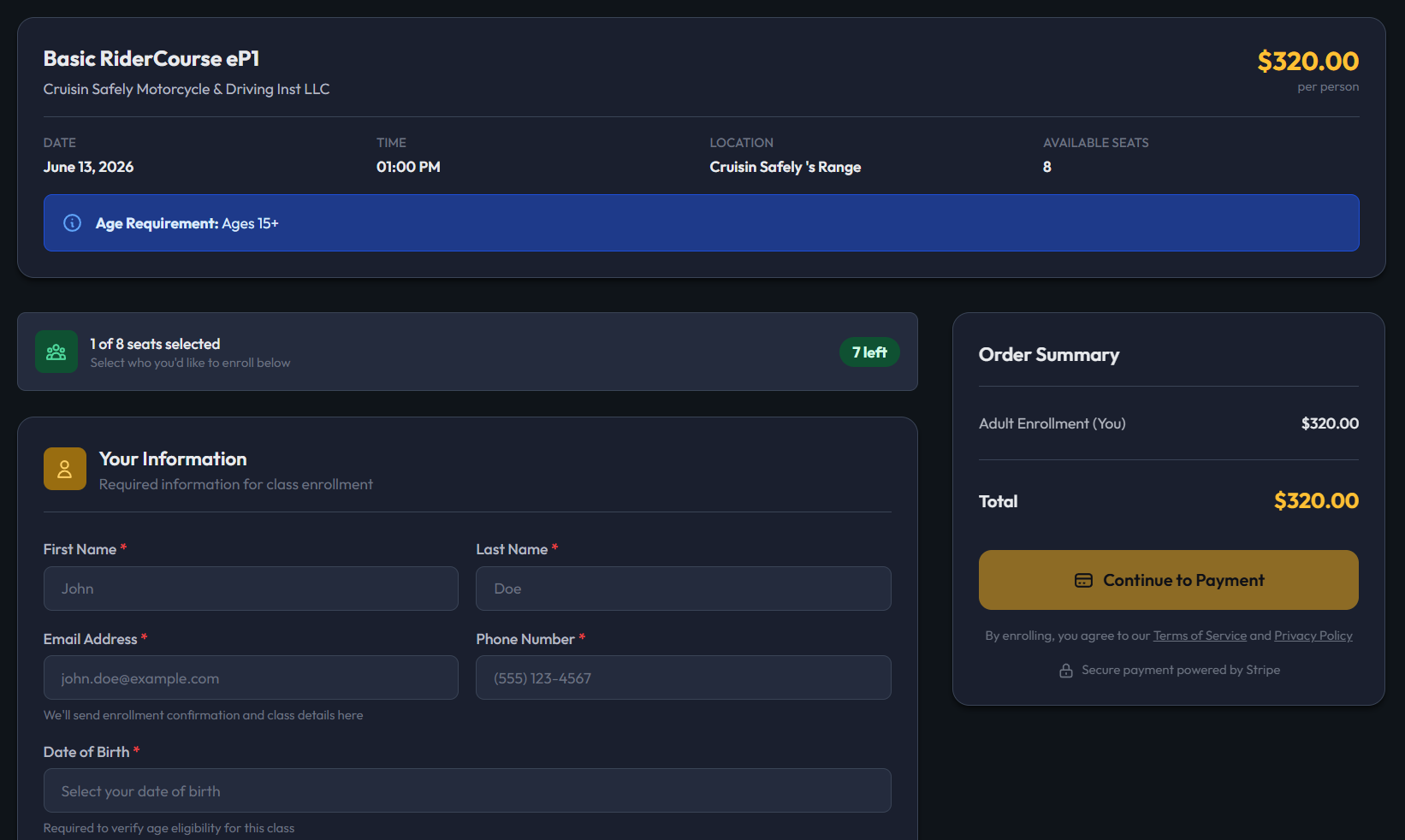
- Name
- Phone number
- Date of birth
Enter any additional required details (if prompted):
- Address
- Driver’s license
- Emergency contact
Choose who to enroll:
- the student
- child(ren)
- or both
Review the enrollment summary
Complete payment if required
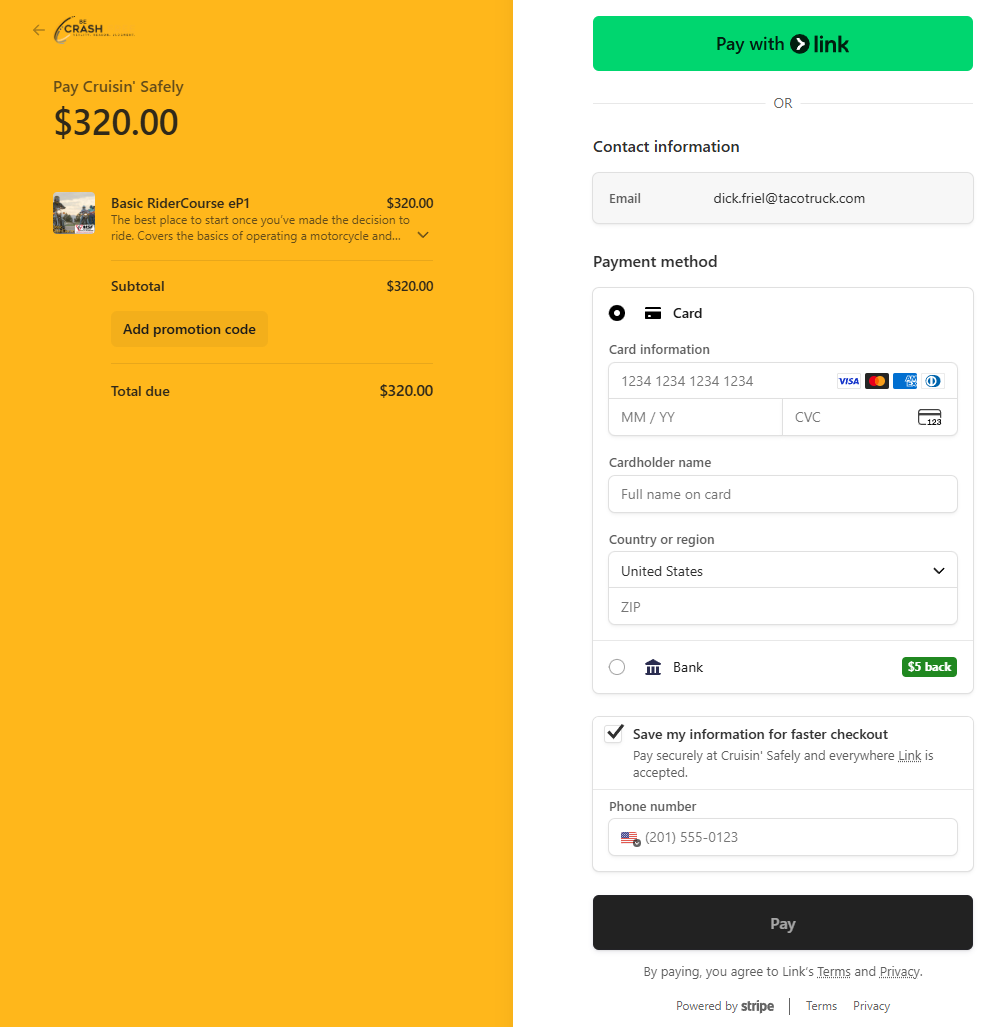
- Enrollment is confirmed and added to the roster
What Happens After Guest Enrollment
- A guest account is created using the provided email
- The student receives a confirmation email
- The student can later claim the account using Forgot Password
- Existing guest accounts with the same email will be reused
Option 3: Share a Registration Link
Use a registration link to direct students to specific classes.
Steps
- Create a link that filters to the desired class or classes
- Share the link with students
- Students open the link and enroll from the filtered list Note: Here is the help article on Share Links
Enrolling a Minor Child
Steps
- During enrollment, select the child to enroll
- If using an account, ensure the child is already added to the account
- If using guest enrollment, enter the child’s details directly
- The enrollment is linked to the parent or guardian
Notes
- There is no dedicated feature to manually add a specific student directly
- Self-enrollment is the primary method
- Guest enrollment is the best alternative when needed
Troubleshooting
“Enroll as Guest” is not visible
- Guest enrollment may not be enabled
- The class may not support guest enrollment
The class is full
- The class may have reached capacity
- Consider adjusting capacity or using another class
Student not showing on roster
- The enrollment may be incomplete
- Payment may not have been finished
Student does not have email access
- Use an available email to complete guest enrollment
- Update contact details later if needed
Student enrolled in the wrong class
- Remove the enrollment
- Have the student enroll in the correct class
- Process refunds separately if needed
FAQ
Can I manually add a student to a class?
No. Students must enroll themselves or be enrolled using guest enrollment.
Can a parent enroll a child?
Yes, if the class allows the child’s age.
Does guest enrollment create a permanent account?
It creates a guest account that can be claimed later by setting a password. If you want to take this one step further, I can:
Was this article helpful?
That’s Great!
Thank you for your feedback
Sorry! We couldn't be helpful
Thank you for your feedback
Feedback sent
We appreciate your effort and will try to fix the article