Password reset process
Step 1 — Navigate to the reset page
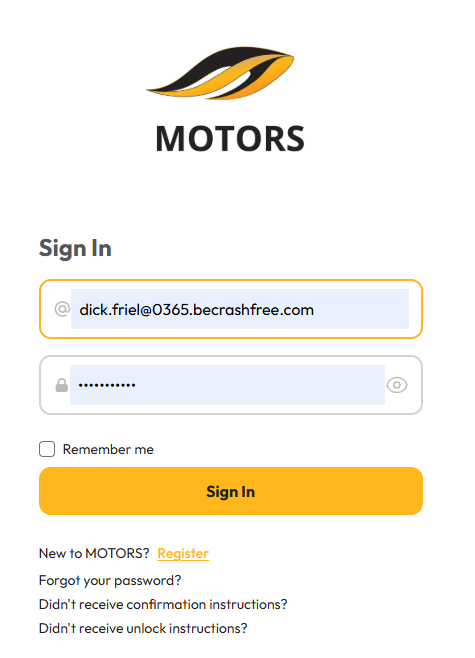
- Go to the MOTORS sign-in page.
- Below the sign-in form, click the “Forgot your password?” link.
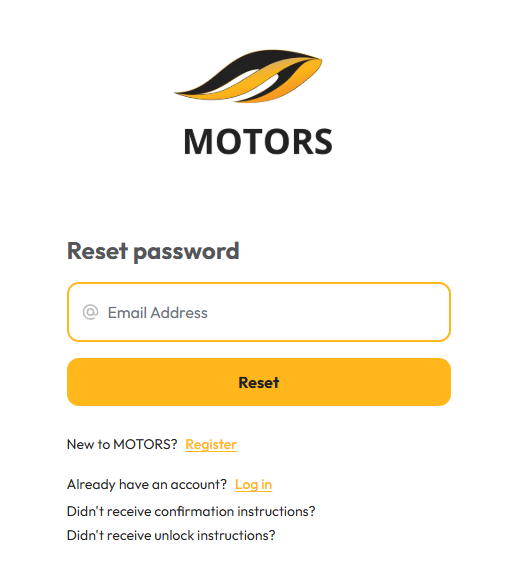
Step 2 — Request a reset email
- Enter the email address associated with the MOTORS account.
- Click the Reset button.
- The system will send an email to that address.
!!! warning The reset link is only valid for 6 hours. If the student does not click the link within 6 hours, they must request a new reset email.
Step 3 — Open the reset email
- The student should check their email inbox (and spam/junk folder) for a message from MOTORS.
- Inside the email, click the “Change my password” button or link.
Step 4 — Set a new password
- The student enters a new password in the Password field.
- The student re-enters the same password in the Confirm password field.
- Click the Reset Password button.
Note: After a successful reset, the student is automatically signed in.
Password requirements
To ensure security, all new passwords must meet these requirements:
- At least 8 characters long.
- At least 1 uppercase letter (A–Z).
- At least 1 lowercase letter (a–z).
- At least 1 number (0–9).
- At least 1 special character (such as ! @ # $ % ^ & * -).
Guest account activation
Students who enrolled via guest checkout do not have a password. The password reset process is used to activate these accounts.
- Have the student follow the “Password reset process” steps above using the email they used during checkout.
- Once they successfully set a password, their account is automatically converted to a full account, allowing them to sign in normally in the future.
How to help a locked-out student
If a student cannot sign in, they can unlock their account in two ways:
- Via Email: Have the student click “Didn’t receive unlock instructions?” on the sign-in page to request an automatic unlock email.
- Wait: The account will unlock automatically after 1 hour of inactivity.

Troubleshooting
- The reset email was not received. Ask the student to check their spam or junk folder. They should also verify that they are checking the same email address used for their MOTORS account.
- The reset link has expired. The student must go back to the “Forgot Password” page and request a new link.
- Error when setting a new password. Ensure the new password meets all the complexity requirements (8+ characters, including uppercase, lowercase, a number, and a special character).
Was this article helpful?
That’s Great!
Thank you for your feedback
Sorry! We couldn't be helpful
Thank you for your feedback
Feedback sent
We appreciate your effort and will try to fix the article