Before You Begin
You need:
- Access to the class roster page.
- The student scores and attendance information for the session.
Mark Attendance
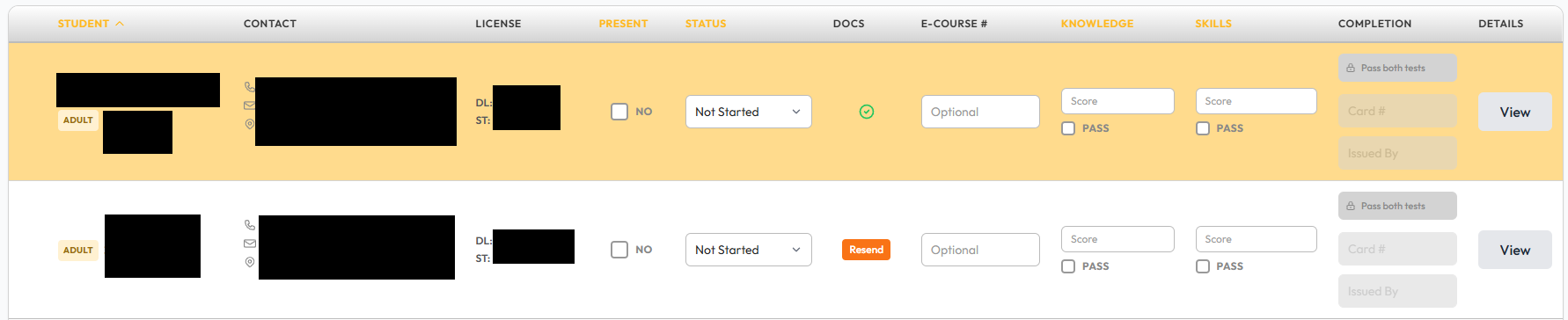
- On the roster page, find the student.
- Check the Present checkbox for every student who attended the class.
- If your organization is using eSign, check the status of the documents in the roster:
- A green checkmark means eSign is complete for that student.
- A Resend button allows you to resend the eSign request so the student can sign from their mobile device before class.
Set Student Status
- Locate the Status dropdown for the student.
- Select the appropriate outcome:
| Status | Description |
|---|---|
| Not Started | Default status when no outcome has been recorded. |
| Passed | The student successfully completed the course. |
| Failed Skills Test | The student did not pass the riding skills evaluation. |
| Instructor Dropped | The instructor removed the student from the class. |
| Student Dropped | The student withdrew from the class. |
| Dropped Motorcycle | The student dropped the motorcycle during the evaluation. |
| Medical Withdrawal | The student withdrew for medical reasons. |
| Incomplete Knowledge Test | The student did not complete the written exam. |

Enter Scores
Knowledge Test
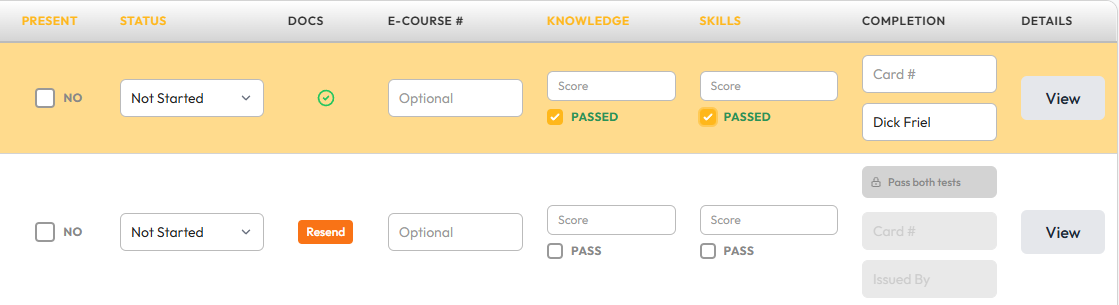
- Enter the numeric score in the Knowledge Scorefield.
- This can be left blank for the eCourse
- Check the Knowledge Passed checkbox.
Skills Test
- Enter the numeric score in the Skills Score field.
- Check the Skills Passed checkbox.
Enter Completion Card Information
Note: These fields become available only after both the Knowledge and Skills tests are marked as passed.
- Once both tests are marked as passed, the Completion Card # and Issued By fields become editable.
- Enter the completion card number in the Completion Card # field.
- The name of the user filling out this form will automatically populate in the Issued By field
Complete the Class (Organization Administrators Only)
- Navigate to the class detail page.
- Open the Admin Actions dropdown.
- Select Mark Class as Complete.
- Confirm the action in the dialog box.
What Happens Next
When a class is marked as complete, MOTORS verifies that all students marked Present have the required scores and completion card information.
Validation
If required information is missing for any student, a notification appears at the top of the roster page listing the missing details.
Automatic Saving
Changes made to student attendance, scores, statuses, and completion information are saved automatically.
State Reporting
If your state uses MOTORS to track class metrics, completing the class also serves as your organizations reporting requirement.
Note: This does not satisfy any DMV reporting requirements
Frequently Asked Questions
Why are the Completion Card fields grayed out?
The Completion Card # and Issued By fields remain locked until both the Knowledge Passed and Skills Passed checkboxes are selected for the student.
How do I handle a student who was present but did not finish the course?
Select the appropriate status, such as Incomplete Knowledge Test or Student Dropped. These statuses do not require passing scores or completion card information.
Can I update a score after the class is finished?
Yes. You can return to the roster and update scores even after the class has been marked as complete.
How do I print a copy of the roster?
Click Print Roster at the top of the roster page to generate a PDF version of the student roster.
Was this article helpful?
That’s Great!
Thank you for your feedback
Sorry! We couldn't be helpful
Thank you for your feedback
Feedback sent
We appreciate your effort and will try to fix the article