This article explains how to enter student scores, record attendance, mark pass/fail status, and complete a class using the roster page. This process is the same for all course types.
Who can use this?
- Organization Administrators can access rosters for any class within their organization.
- Instructors can access the roster for classes they are assigned to teach.
Before you begin
You need:
- Access to the class roster page.
- The student scores and attendance information for the session.
Steps
Mark attendance
- On the roster page, find the student.
- Check the Present checkbox for every student who attended the class.
- If your organization is using eSign, check the status of the documents in the roster. A green checkmark means eSign is complete for that student. A resend button allows you to resend the request for eSign to the student from the roster so they may sign via their cell phone before class.
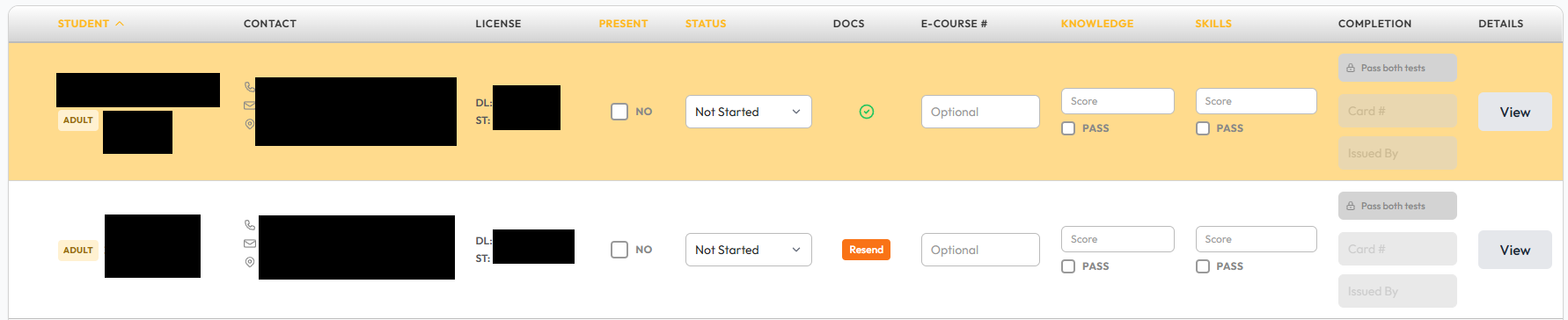
Set student status
- Locate the Status dropdown for the student.
- Select the correct outcome from the list:
- Not Started: The default status if no outcome has been recorded yet.
- Passed: The student successfully completed the course.
- Failed Skills Test: The student did not pass the riding skills evaluation.
- Instructor Dropped: The instructor removed the student from the class.
- Student Dropped: The student withdrew from the class.
- Dropped Motorcycle: The student dropped the motorcycle during the evaluation.
- Medical Withdrawal: The student withdrew for medical reasons.
- Incomplete Knowledge Test: The student did not complete the written exam.

Enter scores
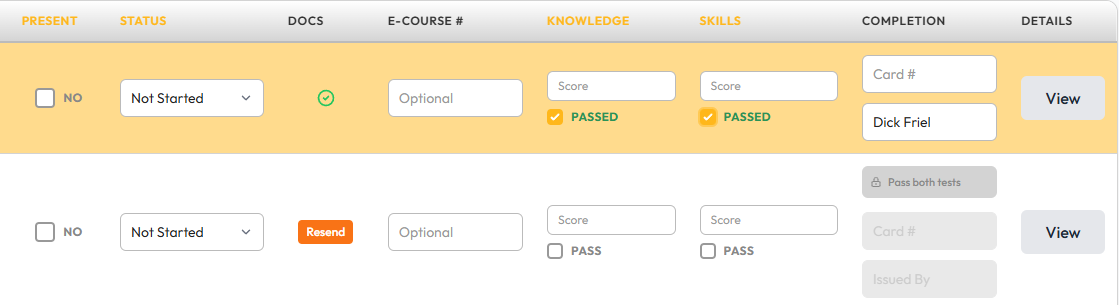
- Knowledge Test: Enter the numeric score in the Knowledge Score field and check the Knowledge Passed checkbox.
- Skills Test: Enter the numeric score in the Skills Score field and check the Skills Passed checkbox.
Enter completion card information
Note: These fields only become available after both the Knowledge and Skills tests are marked as passed.
- Once both tests are checked, the Completion Card # and Issued By fields will unlock.
- Enter the completion card number in the Completion Card # field.
- Enter the name of the person who issued the card in the Issued By field (this field may auto-fill with your name).
Complete the class (For Organization Administrators)
- Navigate to the class detail page.
- Open the admin actions dropdown.
- Click Mark class as complete.
- Confirm the action in the dialog box.
What happens next
When you mark a class as complete, MOTORS checks that all “Present” students have the required scores and completion information.
- Validation: If any required information is missing for a student, a notification will appear at the top of the roster page listing the missing details.
- Notifications: Any changes made to students’ scores or statuses are saved automatically.
Frequently asked questions
- Why are the Completion Card fields grayed out? The fields are locked until you check both the Knowledge Passed and Skills Passed checkboxes for that student.
- How do I handle a student who was present but did not finish the course? Select an appropriate status, such as Incomplete Knowledge Test or Student Dropped. These statuses do not require full score data to complete the class.
- Can I update a score after the class is finished? Yes. You can still navigate to the roster and update scores after a class is marked as complete.
- How do I print a copy of the roster? Click the Print Roster button at the top of the roster page to generate a PDF version of the student list.
Was this article helpful?
That’s Great!
Thank you for your feedback
Sorry! We couldn't be helpful
Thank you for your feedback
Feedback sent
We appreciate your effort and will try to fix the article